To start off, I have to make a disclaimer and say that I studied graphic design in college and I already had a good working knowledge of Adobe software when I got started in digital scrapbooking. Also, my interest is mainly in designing for the industry, rather than being a true-blue, died in the wool scrapbooker. I was a cardmaker for a time, but when we moved out here to the sticks I never got involved in a cardmaking group, so that was the end of that. However, I love to make things, and what I love about digital scrapbooking is that I can find a lot of great FREE papers and elements (and I can make my own, time permitting) and use them for other things that I enjoy. For example, I did a stitched postcard swap a while back and used some free digital papers to print out iron-on images for muslin fabric. That way, I could buy the less expensive fabric, but still came up with a really original end product.

Disclaimer aside, I really did spend a lot of time looking for free tutorials and also bought a few digital kits to see exactly what it was all about. I studied the designer's files to learn what a PNG file was and how to use it. I went in and enlarged files, looked at pixel dimensions, and sampled color schemes to see what made those things tick...then I tried it myself. If you have seen my Etsy shoppe, then you'll probably have noticed a variety of different styles in my designs. Part of that is a result of my having taken a beginner's course from Digital Scrapbook University on how to design for the digital scrapbook world where they stress the creation of life-like elements for your kits. And, I still have a lot to learn.
If you want to get started just as a user of digital scrapbook kits, then I am going to list some of my favorite sites that have tutorials and freebies.
Getting Started in Digital Scrapbook Online Shops:
Design House Digital: First of all, this is a really classy group of designers. I don't think I've ever seen a design I didn't like. They have an entire section devoted to tutorials. The first tutorial gives instruction on how to do a layout in
Adobe Photoshop Elements, which is one of the software programs you can use. Adobe has been doing design software for years, and is, in my opinion, the only way to go. However, if you are strapped for cash and can't afford it, there are other, less-expensive programs out there. That said,
Elements, is a pretty good deal considering the full professional version of Photoshop is several hundred dollars to purchase and
Elements is currently priced at $89 (clicking this link will take you to the Adobe site so you can check it out), but you can also download it and use it free for 30 days to try it out.
JessicaSprague.com: A fantastic resource to get started. Tons and tons of great classes and designers teaching them. They have a free class to help you get started which you can find
HERE. I believe this is where I started out, and there were enough free tutorials elsewhere that taught me what I wanted to know, that I really haven't had to invest too much money in classes.
The Daily Digi: This site also has a lot of digital scrapbook tutorials. They have tons of links to other designers' blogs and websites with their tutorials as well. I highly recommend it.
Digi-Scrap Freebies
All of the above sites have freebies from their designers, or links to their designers blogs which often have freebies as well. Also, look for blog hops...a great way to get freebies from a variety of designers.
Carina Gardner: This lady is awesome--she's got class! This link will take you to her page with freebies and patterns (she is also a fabric designer), but
this link takes you to her paper lines. I really studied a free kit of hers when I started out, plus her layouts are always very nice.
Designer's Resources
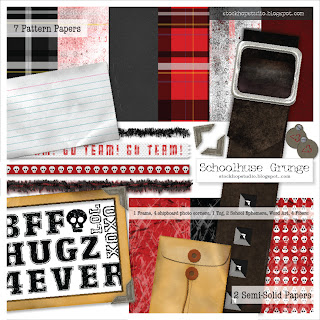
PSHero.com: I love this site! For me, it has great tutorials on how to make the elements I am too cheap to buy because I know that as a designer I could probably do it myself with enough knowledge and time. This is where I got the skills to create some of the distressed paper elements in my School House Grunge kit. See the chipboard elements, the manilla envelope and the 3x5 card below? All done using techniques from this website. Yeah, the belt too.
You may be thinking that since you don't want to be a digital scrapbook designer you wouldn't need a site like PSHero, but I actually think that following their tutorials is a great way to learn your way around Photoshop, and you can apply what you've learned there to your digital scrapbooking.
The Daily Digi: This site also has a lot of digital scrapbook tutorials. They have tons of links to other designers' blogs and websites with their tutorials as well. I highly recommend it.
Ok. That's all for now. I am planning on doing a follow-up, so post your questions. I've probably asked them myself and can direct you to the places where I found my answers. Have a great day!